
Teach Mode
Overview
Teach mode is designed for tutors managing student assignments and tracking their progress. It allows you to send invitations to students, assign Torah portions for practice, and monitor how far along each student is in their learning. Whether you are a cantor, teacher, or experienced Torah reader helping others prepare, Teach mode gives you the tools to manage multiple students from a single view.
Note: Teach mode requires you to be signed in. You can only see students who have accepted your invitations.
Student Assignments
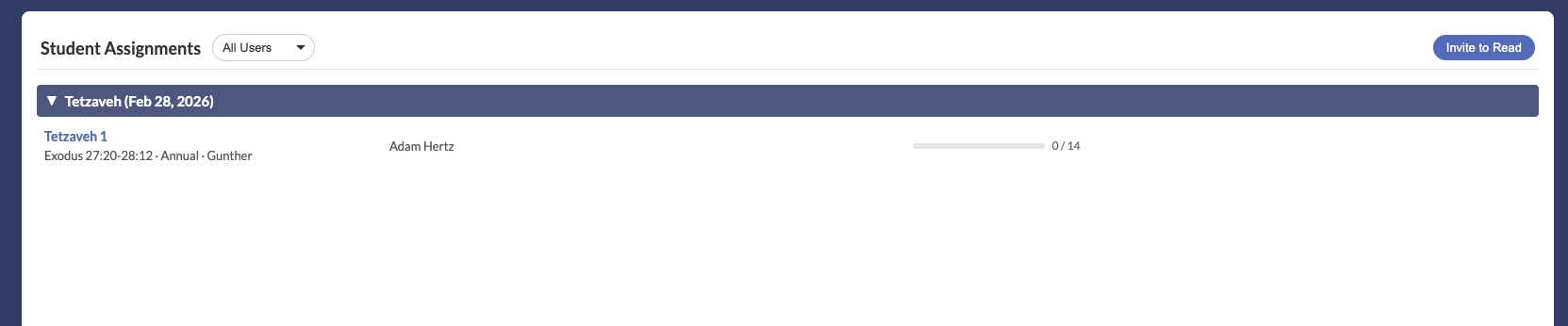
When you enter Teach mode, you see the Collaboration tab with your student assignments. Initially this list is empty—it populates as students accept your invitations. Pending invitations are also shown so you can track who has not yet responded. Assignments are grouped by parsha date, making it easy to see which students are preparing for the same upcoming Shabbat reading.
Each student entry shows:
- Student name — The display name of the student who accepted your invitation
- Aliyah details — The parsha name, verse range, kriyah (full or triennial), and which Torah scroll is being used
- Progress bar — A visual indicator showing how many verses the student has completed out of the total (e.g., "0/14" verses complete)
Invite to Read
Sending a new invitation is done through a two-part form accessible from the Teach mode screen.
Parsha and Aliyah Selection
The left side of the invitation form provides an interactive parsha and aliyah picker. Select the Torah portion and specific aliyah you want to assign to the student. The picker reflects the current kriyah setting (full or triennial) and shows the corresponding verse ranges.
Recipient Selection
The right side of the form lets you choose who to invite:
- Community members — Choose from a list of members in your synagogue community who already have Virtual Tikkun accounts
- Email address — Enter an email address manually to invite someone who may not yet have an account
You can also include an optional personal message with the invitation. Invitations are delivered via email or as an in-app notification, depending on whether the recipient already has an account.
Invitation Status
After sending invitations, you can track their status directly in Teach mode. Each invitation is shown with one of the following states:
| Status | Meaning |
|---|---|
| Pending | The invitation has been sent but the recipient has not yet responded. |
| Accepted | The recipient has accepted the invitation. Their progress will now appear in your student assignments list. |
| Rejected | The recipient has declined the invitation. |
You can manage your invitations by resending or canceling pending ones as needed.
Monitoring Progress
Once a student has accepted your invitation, their progress becomes visible in your Teach mode dashboard. Progress monitoring includes:
- Progress bars per student per bookmark — Each assigned aliyah shows a progress bar indicating how many verses the student has marked as complete
- Verse-level completion tracking — Progress data is synced in real time through shared flashcard data, so you always see the most up-to-date status
- Review student work — Click on a student's bookmark to open their assignment in Study mode, where you can review the same flashcards and see exactly which verses they have completed and which still need work
This allows you to identify students who may need additional support or encouragement, and to prepare targeted feedback before your next meeting or lesson.