
Browse Mode
Overview
Browse mode provides the traditional Tikkun experience—viewing Torah scroll images alongside vocalized Hebrew text. This is the default mode when you open Virtual Tikkun, and it is available to all users, including those without an account.
In Browse mode you can navigate through the entire Torah column by column, switch between different views of the text, zoom into the scroll image, bookmark aliyot for later study, and share your current position with others. It is the foundation of the application: the place where you read, explore, and orient yourself in the Torah scroll.
Note: Browse mode works without signing in. However, bookmarking an aliyah, printing, and sharing require a free account.
Column Navigation
A Torah scroll is written in narrow columns of text. Virtual Tikkun mirrors this layout: instead of scrolling through a long document, you navigate one column at a time, just as a reader would move across the physical scroll.
Navigation controls appear as arrow buttons on either side of the main content area. You can also use your keyboard:
| Control | Action |
|---|---|
| Left Arrow or left-side button | Move forward to the next column (Hebrew reads right-to-left, so forward is to the left) |
| Right Arrow or right-side button | Move backward to the previous column |
When you reach the last column of a parsha, the forward arrow is disabled. Likewise, the backward arrow is disabled at the first column. Use the Table of Contents to jump to a different parsha or aliyah.
Tip: On touch devices you can also swipe left or right to navigate between columns.
View Modes
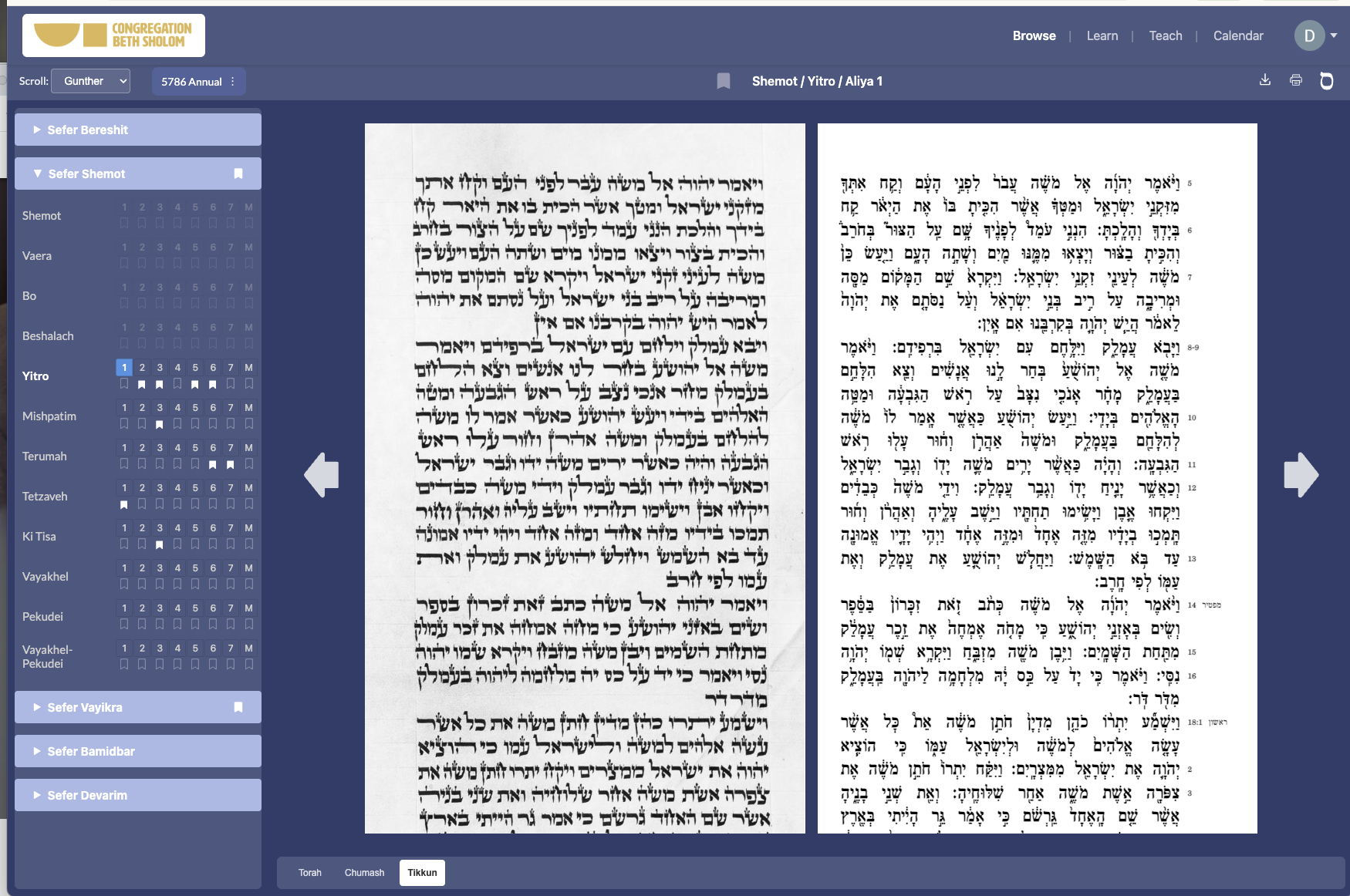
Browse mode offers three ways to view the Torah text. Toggle between them using the view-mode buttons in the toolbar above the content area.
| View | What You See | When to Use |
|---|---|---|
| Torah | The scroll image only—consonantal Hebrew text without vowels or trope marks | Test your reading ability by practicing from the bare scroll text, just as you would during the actual Torah reading |
| Chumash | Typeset Hebrew text with full vowels (nikkud) and trope/cantillation marks | Study the pronunciation and melody. This is the "answer key" for the unvoweled scroll |
| Tikkun | Side-by-side Torah scroll image and Chumash text—the traditional study format | The classic Tikkun layout: glance at the Chumash column for help, then cover it and read from the Torah column |
Tip: Use keyboard arrows Up and Down to cycle through view modes in Study mode.
Table of Contents
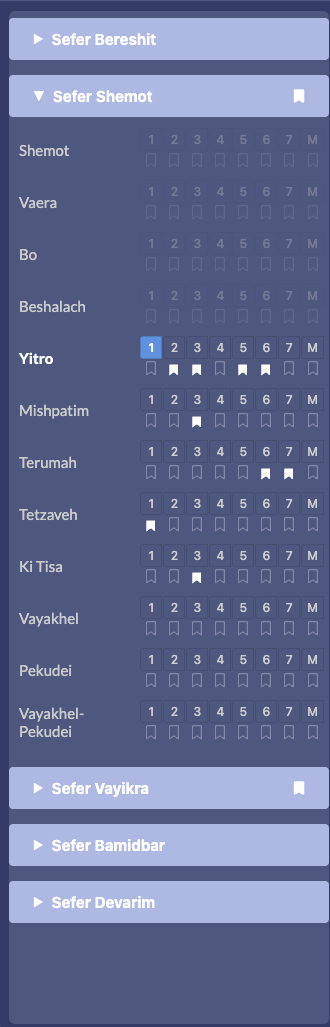
The sidebar on the left displays a hierarchical Table of Contents for navigating the Torah:
- Five Books of Torah — Genesis (Bereshit), Exodus (Shemot), Leviticus (Vayikra), Numbers (Bamidbar), Deuteronomy (Devarim)
- Parshas — The weekly portions within each book (54 total across the year)
- Aliyot — The sections within each parsha, numbered 1 through 7 plus "M" for Maftir
Click a book name to expand or collapse its parshas. Click a parsha to see its aliyot. Click an aliyah to jump directly to the first column of that section.
Bookmark icons appear next to any aliyah you have bookmarked, making it easy to find your saved study positions at a glance.
Zoom Controls
When viewing the Torah scroll image (in Torah or Tikkun view), you can zoom in for a closer look at the handwritten text. Zoom controls are located in the toolbar:
- Plus (+) — Zoom in to enlarge the scroll image
- Minus (−) — Zoom out to see more of the column
Your zoom level is saved automatically and persists across sessions, so you do not need to re-adjust each time you return to the app.
Note: Zoom controls apply to the Torah scroll image. The Chumash text size follows your browser's standard text-size settings.
Bookmarking
Bookmarking saves the current aliyah so you can return to it later or study it in Study mode with flashcards and progress tracking.
To bookmark an aliyah, click the bookmark icon in the header toolbar. The icon changes to a filled state to indicate that the aliyah is saved. Click it again to remove the bookmark.
- Bookmarked aliyot appear in the Community mode for easy access
- Bookmark indicators also appear in the Table of Contents sidebar next to saved aliyot
- Bookmarks are synced to your account and available on any device where you sign in
Tip: Bookmarking an aliyah is the first step toward using Study mode. You must bookmark an aliyah before you can study it with flashcards.
Action Buttons
The Browse mode header bar includes several action buttons for working with the current content:
| Action | Description |
|---|---|
| PDF Download | Download the current column or aliyah as a PDF file for offline reference or printing |
| Send the current view directly to your printer | |
| Sefaria | Open the current passage on Sefaria.org, a free library of Jewish texts with English translations, commentaries, and related resources |
Year and Kriyah Selector
At the top of the sidebar you will find controls for selecting the reading cycle and Hebrew year. These determine which portion of text is highlighted for each aliyah.
Reading Cycle (Kriyah)
Jewish communities follow one of two reading cycles:
- Full (Annual) — The entire parsha is read each week. Every aliyah covers its complete verse range. This is the traditional cycle used by most communities worldwide.
- Triennial — The parsha is divided into three parts, and approximately one-third is read each year over a three-year rotation. This shorter reading is common in many Conservative and some Reform congregations.
Hebrew Year
When using the Triennial cycle, the specific third that is read depends on the Hebrew year. The year selector lets you choose between the current year and the next two years in the rotation (for example, 5786, 5787, and 5788). This is useful for planning ahead or reviewing a past year's reading.
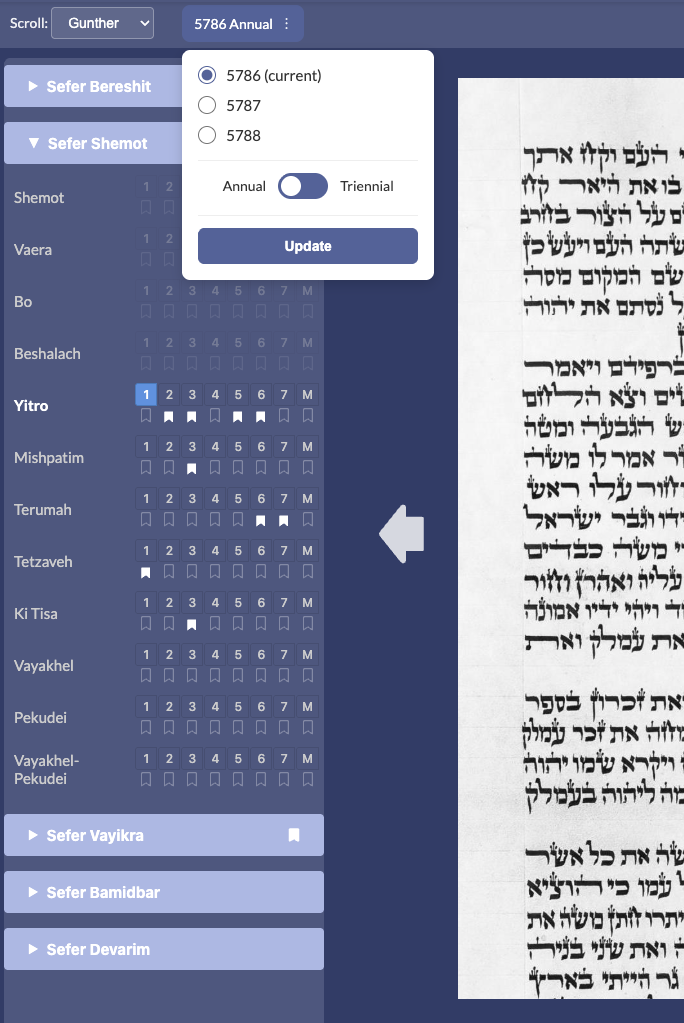
Note: Switching between Annual and Triennial affects which verses are included in each aliyah. The underlying Torah scroll content remains the same—only the aliyah boundaries change.